Saturday, October 12, 2013

Edit command bar / ribbon in Microsoft Dynamics CRM 2013

As Microsoft Dynamics CRM 2013 came out the ribbon was excluded with couple exceptions. Instead of ribbon we now have something that's called "command bar", well, because it is a command bar. However, you could think it as a "ribbon in disguise" because all modifications are still to be done through RibbonDiffXml. You can modify your RibbonDiffXml by hand or you can make your life much easier and use Ribbon Workbench software / solution. It will allow you to modify both your command bar and the ribbon. Some few entities / forms in Crm 2013 still use ribbons. Outlook client use ribbons in a certain depth as well so it's definitely something to keep in mind. I also recommend to take a look at the CRM 2013 SDK as it can help you to understand this whole concept.

Example

In this example I'm adding a simple button to my custom entity's command bar

RibbonDiffXml:


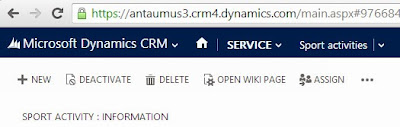
And here is what it looks like. Notice my custom webresource icon. You can find tons of icons in CRM SDK.


And this is how Ribbon Workbench looks like. I definitely recommend using it but of course it's always good to know what happens under the hood!


Resources:

Thursday, October 10, 2013

Business rules in Microsoft Dynamics CRM 2013

Business rules in Microsoft Dynamics CRM 2013


Microsoft Dynamics CRM 2013 has been released a little time ago with a lot of new features and changes.

Business rules are one of the new features in CRM 2013. Business rules are relatively easy, well, business rules, that you can create through the user interface. Let's say you want to show or hide a certain field depending on another field's value. That would have take some javascript coding with CRM 2011 but with CRM 2013 you can actually achieve this by using only UI. So no programming needed, which is of course always welcome - especially for programmers.

So what can you do with business rules? Below lies a short list of different possibilities

  • Show error message
  • Set field value
  • Set business required
  • Set visibility
  • Lock or unlock field
So very basic but indeed very helpful stuff. Let's take a look at how to actually implement a business rule.

Show or hide a field using business rules

Example:

I have created an xRM system which I use to keep track of my sport activities. I have created a custom entity type named "Sport activity". In the sport activity form I have a drop down list of different sport activity types (including running, cycling, badminton, football). I also have a "Distance" field in the form (hidden by default) and I want to show it only when I've selected a certain sport activity type (such as running or cycling).

So what I need to do is to create a new business rule that'll set distance field visible when the sport activity type equals running or cycling. I can start this by opening a form designer and double clicking the sport activity type -field. There I see Business Rules tab with the "New" button. Refer the picture below.


Click "New" and fill the form. My business rule looks like this


Notice the Scope option on a top right hand side corner. It means that this business rule applies for Information form by default. You can change the value to be "All forms" for example or if you've created a custom form you can set it as a scope.

When you're ready simply Activate your business rule and you're on the go.

Note that you have to create another business rule to hide the distance field in relevant cases. Otherwise it would never go away after the first time it is set visible.


Monday, October 7, 2013

How to display a loading gif until a javascript function has been completed

The day may come when you come across the situation where you have so heavy javascript function that it actually takes some time to finish. While the code is running it freezes the UI which is not very user friendly but what can we do? Well, I'd say we have three options.

  1. The first thing I'd do is to check the logic of the code. If something is slow (speaking of javascript) there's probably better way to do it. But in some cases that's not an option. You may have actually written pretty decent code or you just don't have enough time to fix the whole past two years of someone's poor coding. Then I'd move to option two.
  2. Option two is Web Workers.

    "A web worker is a JavaScript that runs in the background, independently of other scripts, without affecting the performance of the page. You can continue to do whatever you want: clicking, selecting things, etc., while the web worker runs in the background." 

    Sounds ideal. And it is. But remember that Web Workers are not supported by IE 8 or other slightly older browser that are still in heavy use. So what do we do now?
  3. My third option would be to add a loading gif / loading text to the screen so that a user at least can tell there's something happening even if he's not be able to use the page while the script is running. And this is the topic of this post. 

How to show loading gif on the screen until the function has completed

So I created very simplified solution for this not-a-real-world example. See my solution in action. My code is below. I tried to comment the code so that you could have a sense what's happening there. But in a nutshell what I did.

A recursive function that waits one millisecond every time it's been called. You could think this as a home-made FOR-loop since we're keeping track of the quantity of function calls. Anyways, you could have this without a counter so that It would run till the end of the world. It would not freeze the browser because the timeout.


I hope this will help you in a way or another.

Wednesday, September 4, 2013

How to copy an entity using C# plugin and early bound classes

Hello,

In this post I'm going to explain you how to copy an entity by using plugin written in C#. I'm also demonstrating you the power of CrmSvcUtil which "generates early-bound .NET Framework classes that represent the entity data model used by Microsoft Dynamics CRM" for your Visual Studio project. I'm not going through how to use CrmSvcUtil. If you need help getting started with it please refer Create Early Bound Entity Classes with the Code Generation Tool (CrmSvcUtil.exe).

As an example I'm going to use Contact entity. I'm going to attach my plugin in Delete event / message so that when ever the user deletes the contact my plugin will run and copy that contact.

Some prerequisites are

  • You have Visual Studio and know how to create a solution and a project.
  • You have plugin registration tool and know how to register a plugin
  • You have CrmSvcUtil and know how to generate classes and import them as part of your Visual Studio project.
  • You have Microsoft Dynamics CRM SDK (which actually includes plugin registration tool and CrmSvcUtil)
So let's get started. I'm writing this post as I'm doing this task so you may want to do some things in different order maybe.

Step 1

Create a new solution (or use existing one) and add new project into it. There are some assemblies you have to add.
  • Microsoft.Xrm.Sdk (this can be found inside the SDK)
  • Microsoft.Xrm.Sdk.Client
  • System.ServiceModel
  • System.Runtime.Serialization

Step 2

Generate classes by running CrmSvcUtil.exe from console. You may want to check all available attributes from the link I provided in a beginning. As a reference this is how my command looks like

C:\Program Files (x86)\Microsoft Dynamics CRM 2011 SDK\bin>CrmSvcUtil.exe /url:https://antaumus601.crm4.dynamics.com/XRMServices/2011/Organization.svc /out:EarlyBoundClasses.cs /username:"myUsername" /password:"myPassword" /namespace:AntaumusCRMSolution

When the .cs file is ready add it to your Visual Studio project.

Step 3

Write the core plugin components (implement IPlugin interface etc.). If you need help with writing plugin please refer Plug-in Development for Microsoft Dynamics CRM

Step 4

Now let's write the actual logic.Very important part when using early bound types is OrganizationServiceContext class. Please refer Use the Organization Service Context Class. In this case it will help us to add our new contact easily to CRM but it has a lot of good benefits (for example LINQ providing).

"To instantiate the context class, you must pass the class constructor an object that implements the IOrganizationService interface."

Fortunately we can create IOrganizationService indirectly from IServiceProvider that is passed for Execute method by writing following lines

IOrganizationServiceFactory serviceFactory = (IOrganizationServiceFactory)serviceProvider.GetService(typeof(IOrganizationServiceFactory));
IOrganizationService service = serviceFactory.CreateOrganizationService(executionContext.UserId);
OrganizationServiceContext orgServiceContext = new OrganizationServiceContext(service);  

So in shortly what happens here is we take IOrganizationServiceFactory from service provider and then use the factory for creating a service. If you want to know more about factories this might be good place to start: Exploring the Factory Design Pattern

Now when everything is settled you can create new entities like this

Contact newContact = new Contact();

And access its properties like this

newContact.FirstName

You can add entity / entities for set OrganizationServiceContext is tracking by using AddObject method. When running SaveChanges() function all changes are  performed for entities that are in the set.

Very simple. I'm not going to explain my whole code here but instead I'll paste it to the end so you can take a look at it by yourself. To keep it very simple I did not copy whole contact in my code, only first name and last name. The approach I'm using in this example may not be the best. If I should really copy the whole contact (and related entities) I might think about using LINQ for sure.

Step 5

Register your plugin in a way you want. I registered it in Post-operation Delete message synchronously and created Pre Entity image. You may have to sign you Visual Studio project first.


Final result


Wednesday, February 13, 2013

Developing Windows 8 apps using modern web technologies

Hello, this is clearly not Microsoft Dynamics CRM related post but I wanted to share this with you anyway. It's amazing what we can do with modern web technologies such as HTML5, CSS3 and JavaScript nowadays. Not that I have much experience... yet, but this lady has. Take a look at her video in which she's talking about possibilities of the modern web techs. We are talking about native, desktop-a-like applications here that are made by using HTML5, CSS3 and JavaScript. No internet connection needed, crazy isn't it.


Tuesday, February 12, 2013

Import data from Excel to MS Dynamics CRM

Hello, let's take a quick look at how to import data from excel spreadsheet into the Microsoft Dynamics CRM. There are two things you have to do (apart from collecting all data you want to import of course).

1. Download a template

First, you need to download the excel template from Microsoft Dynamics CRM. By doing this you ensure that after you have populated it with your data you are still able to import it back without any problems. Go to the entity's page you want to import (leads, opportunities, accounts, etc.). Then click "Import Data" from the data tab inside the top ribbon and select "Download Template for Import". Please refer the picture below.

Save the template in any place you find suitable. Note that the template is actually XML file, so you don't necessarily need Microsoft Excel in order to populate it.

2. Import the populated template

Now once you have filled all data you are ready to import your file back. To do this go back to the entity's page you want to import and at this time select "Import data" from the same button as earlier. The rest should be self explanatory. Just follow the import wizard.

Monday, July 30, 2012

How to get an entity by its id using javascript

How to get an entity by its id using javascript

Short answer

Click here for a short answer.

Long answer

Step 1

The first step is to get an id of an entity whose information you'd like to return. In most of a cases you have a lookup field where you have some entity selected and you most likely want to return information from that particular entity. Notice that you can't really use only Xrm.Page.getAttribute('lookupfield').getValue() for the lookup field because instead of returning the entity it returns a lookup item which is only a link to the actual entity. However we are using it for getting the id. Why we can use it is because the lookup field's value contains actual entity's name, logical name and more importantly the id. The id in turn can be used on a step 2 when reaching out the entity itself and rest of its data.

To get entity's id from a lookup field use

Xrm.Page.getAttribute('lookupfield').getValue()[0].id;

It returns the id in a following form {FD140AAF-4DF4-11DD-BD17-0019B9312238}. We have to get rid of the braces though in order to use it in a further stage. You can use for example javascript function replace() and replace any braces with nothing. See JavaScript replace Method.

Xrm.Page.getAttribute('lookupfield').getValue()[0].id.replace('{','').replace('}','');

Depending on your needs you can save the id straight into a variable or make a function that returns the id when called. I use the function

function getId(){
return Xrm.Page.getAttribute('lookupfield').getValue()[0].id.replace('{','').replace('}','');
}

Step 2

Now when you know how to get the id from the lookup field let's get the fun started. The key element of the whole process is the XMLHttpRequest object. If you don't know what that is or how to use it please refer The XMLHttpRequest Object. Let's start building our function. Give it a meaningfull name.

function getData(){}

Now we have it. At the end of this tutorial that function will have an access to the entity's data we are looking for. First we have to create a new XMLHttpRequest object.

var request = new XMLHttpRequest();

Next we have to use XMLHttpRequest.open() method to assign some information for a pending request. It takes three different parameters.
  1. Method to use to open the connection
  2. Url to the data source
  3. Whether the request is asynchronous or synchronous.
Before we can use the open() we have to define the url to the data source. Below I briefly show you how to construct the url. For more information about URI Conventions I recommend to check out the OData Protocol URI Conventions. Anyway, the url consists of three parts.
  1. Root URI
  2. Resource path
  3. Query
Root URI is constructed in a same manner in all CRM 2011 systems.

var rootURI = Xrm.Page.context.getServerUrl() + '/xrmservices/2011/organizationdata.svc';

Resource path in turn depends on what type of an entity we are looking for. The name is always in a format like <EntityType>Set. For example in case of an incident it looks like


var resourcePath = '/IncidentSet';

Then comes the query which greatly varies depending on your search conditions. In this tutorial we are searching entities by them ids and thus the query is relatively easy. How to construct more complex queries see the OData Protocol URI Conventions once more. The query in this example looks like following

var query = '(guid\'' + getId() + '\')';

What happens here is we are putting the id that our function returns between (guid' and '). Notice that \' stands for an apostrophe that is counted as a string. You could do this apostrophe adding during the step 1 when we were using replace() functions. I personally prefer the current way though because I might need the id somewhere else in a different format for example.

We are now ready to use XMLHttpRequest.open() method since we have all three parameters available. Our getData() function should look like this.

function getData(){
var request = new XMLHttpRequest();
var rootURI = Xrm.Page.context.getServerUrl() + '/xrmservices/2011/organizationdata.svc';
var resourcePath = '/IncidentSet';
var query = '(guid\'' + getPalvelupyyntoId() + '\')';
request.open('GET', rootURI + resourcePath + query, true);
}

Let's finish the XMLHttpRequest by adding two custom HTTP headers, telling what to do when the request is sent and finally sending it. Add these two custom headers that indicates the content type.

request.setRequestHeader('Accept', 'application/json');
request.setRequestHeader('Content-Type', 'application/json; charset=utf-8');

Yes we are using JSON (JavaScript Object Notation) for returning the data and for that you will need the JSON in JavaScript library. I also recommend to visit JSON website which nicely introduce you to JSON in a case you don't know what it is.

Now let's tell our request object how to act when it is sent. In other words when ever the ready state is changed. For that of course we will use good old onreadystatechange event. You can do this many ways but in this case I prefer using so called anonymous function which has no identifier. I leave the function body empty now for the sake of simplicity. We add the body later on.

request.onreadystatechange = function(){};

Then the final step is to send the request by using send() method.

request.send();

Our getData() function should look like this right now.

function getData(){
var request = new XMLHttpRequest();
var rootURI = Xrm.Page.context.getServerUrl() + '/xrmservices/2011/organizationdata.svc';
var resourcePath = '/IncidentSet';
var query = '(guid\'' + getId() + '\')';
request.open('GET', rootURI + resourcePath + query, true); 
request.setRequestHeader('Accept', 'application/json');
request.setRequestHeader('Content-Type', 'application/json; charset=utf-8');
request.onreadystatechange = function(){};
request.send();
}

Basically if you would run the code above it would send the request and even run the anonymous function we attached to the event, but of course nothing significant wouldn't happen because the function body is empty. For that we as a final step we are going to add the function body in which you have the access to entity data.

Remember that the function is called every time when the ready state is changed. For that reason we have to make an if statement to check out what is the current state. We don't want to perform any functionalities if any data is not available. See readyState property documentation for more information.

if(this.readyState == 4){}

When all the data has been received (or when the ready state equals four) we have to check the status as well. See status property documentation for more information.

if(this.readyState == 4){
if(this.status == 200){
}
}

Now finally inside the second if statement you can start write your code you want to perform. In example below I'm demonstrating how to parse the data into a variable and then referring an individual datum. 


if(this.readyState == 4){
if(this.status == 200){
var result = JSON.parse(request.responseText).d;
console.log(result.CustomerId.Name); // Printing a value to console 
}
} 

Now when you put all together it should look like this.

Final result

function getId(){
return Xrm.Page.getAttribute('lookupfield').getValue()[0].id.replace('{','').replace('}','');
}

function getData(){
var request = new XMLHttpRequest();
var rootURI = Xrm.Page.context.getServerUrl() + '/xrmservices/2011/organizationdata.svc';
var resourcePath = '/IncidentSet';
var query = '(guid\'' + getId() + '\')';
request.open('GET', rootURI + resourcePath + query, true); 
request.setRequestHeader('Accept', 'application/json');
request.setRequestHeader('Content-Type', 'application/json; charset=utf-8');
request.onreadystatechange = function(){
if(this.readyState == 4){
if(this.status == 200){
var result = JSON.parse(request.responseText).d;
console.log(result.CustomerId.Name); // Printing a value to console 
}
} 
};
request.send(); 
}

You can do very powerfull functionalities when chaining requests together. It's extremely handy approach for example when creating auto fills for forms. Don't forget to include JSON though. When you parse the result you can use for each loop to loop through all properties of it.

If you have any questions or so leave a comment below. Thank you.